August 6, 2026
ParentSquare Registration Instructions for New Glenbard Accounts
*UPDATED (8/17/2026)
- ParentSquare is ONLY available to Glenbard families who have completed the registration process in PowerSchool, current students and current staff.
- ParentSquare is ONLY available to contacts marked as “lives with” in PowerSchool. Families can log into PowerSchool and update their contact information if necessary. Updates take up to 72 hours.
- Parents/Guardians: If you need to change your phone or email address in ParentSquare, please login to PowerSchool and update your contact information. Any phone labeled “mobile” in PowerSchool will be the default phone in ParentSquare. Updates take up to 72 hours.
If you are a STUDENT or Staff member, Navigate to www.parentsquare.com/signin or open the app and select SIGN IN WITH GOOGLE.
- If you are a parent/guardian, Navigate to www.parentsquare.com/signin or open the ParentSquare app on your device.
- Enter your email address.
* Parents/guardians: use the email address that you provided to Glenbard when you registered your student this school year. If you did not provide an email address, use your cell phone number.
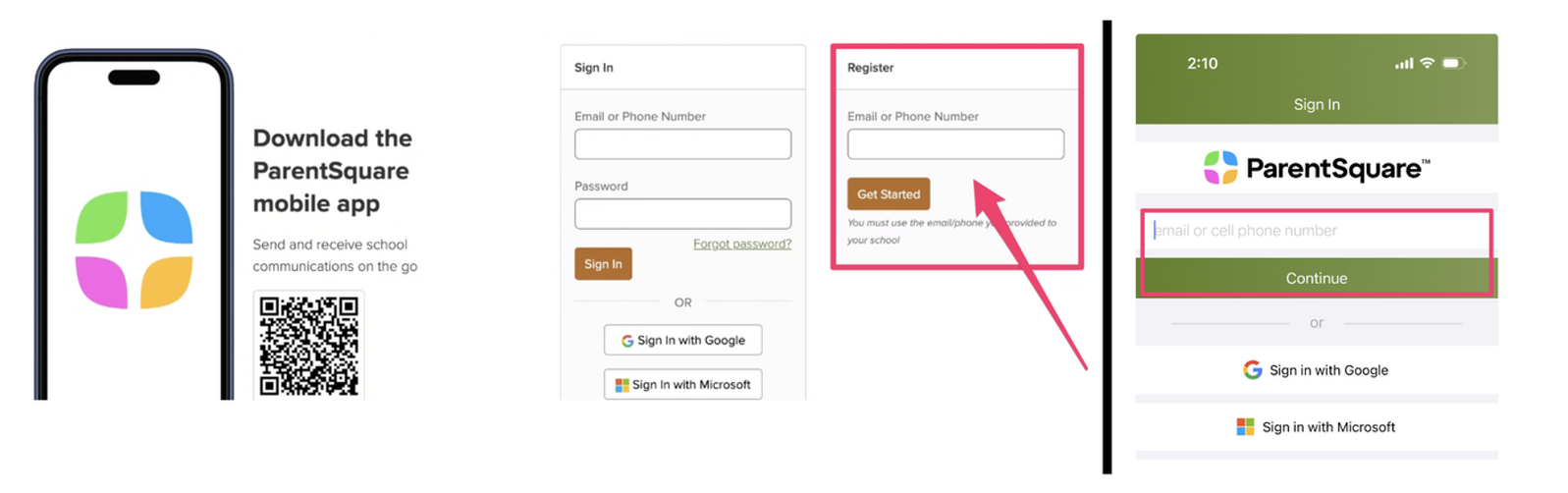
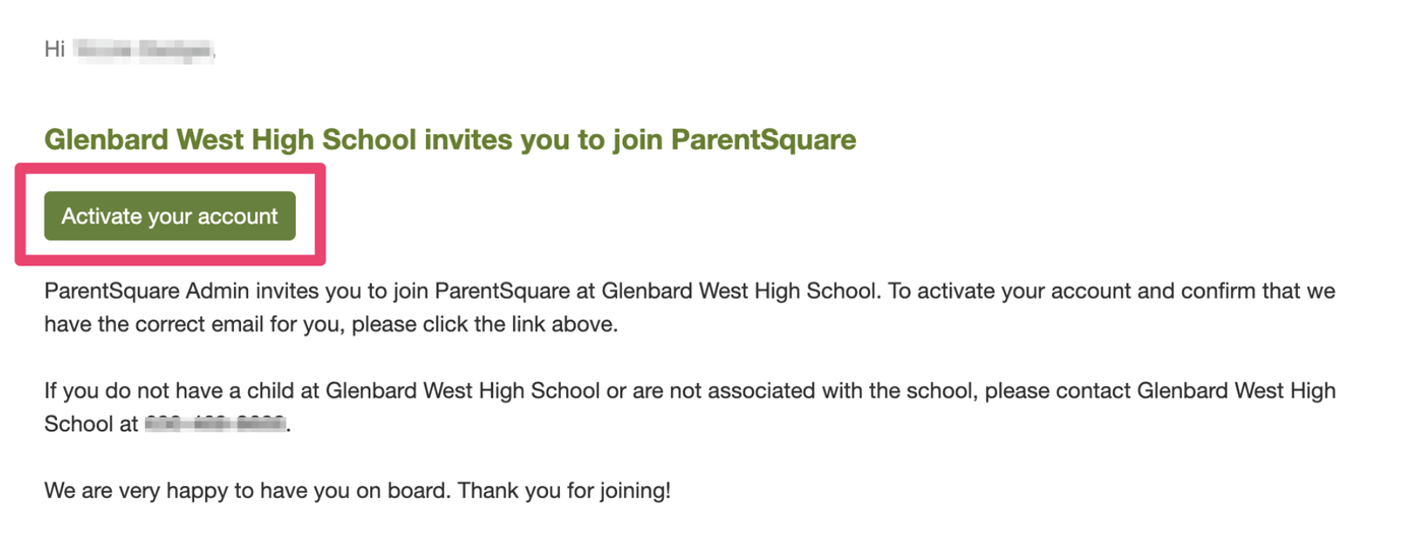
- Check your email account and look for an email from parentsquare.com. Check your Spam filter if you do not receive an email. When you receive the message, select Activate your account. If you do not have an email account, or did not receive an email, then enter your cell phone number in the Register box and look for a text. Your confirmation email will have the subject Glenbard invites you to join ParentSquare and will look similar to this:
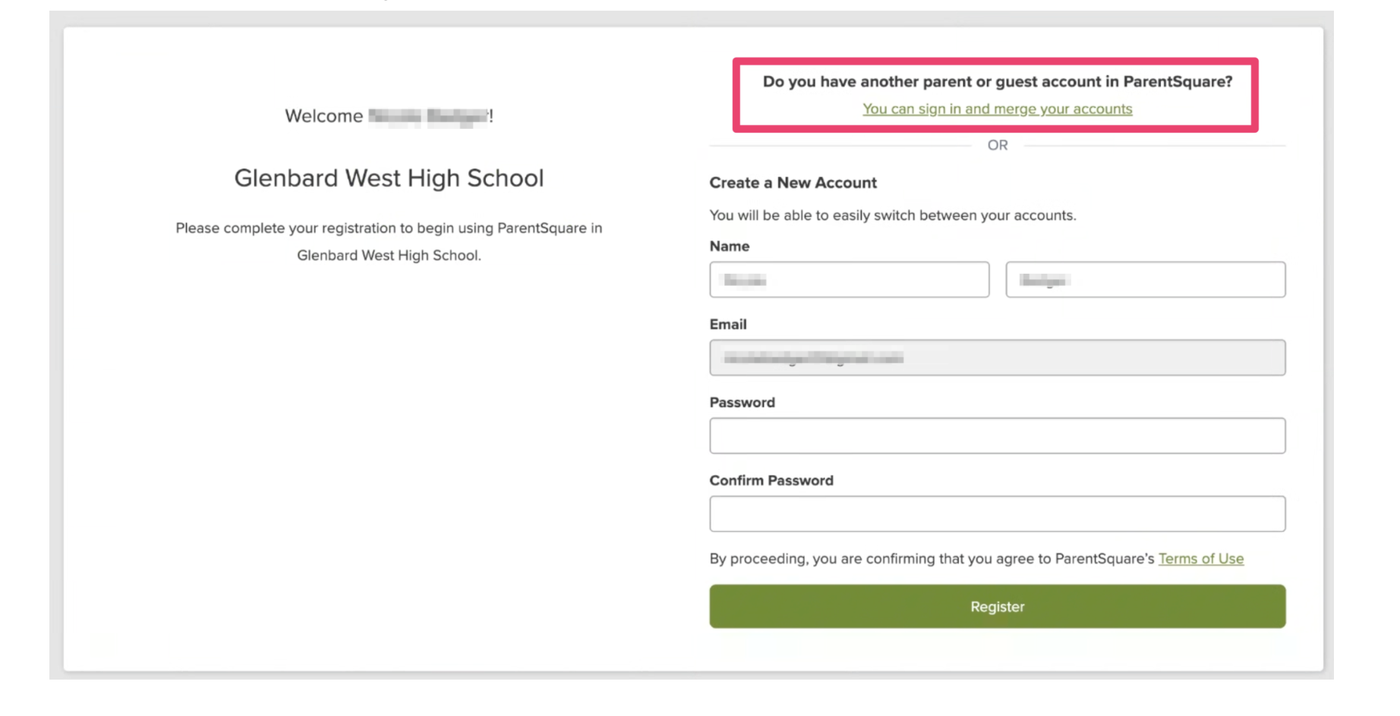
- Next you will need to create a password. IMPORTANT: If you already have a ParentSquare account with another school district, you can sign in and merge your accounts using the link at the top of the screen. If you are new to Parent Square then confirm your name, create a password and Select Register.
- Next, confirm your email, phone and student by selecting Confirm. Then enter the verification code to confirm your contact information. This will ensure that Glenbard has accurate contact information for you. When finished, select Yes, This is Me.
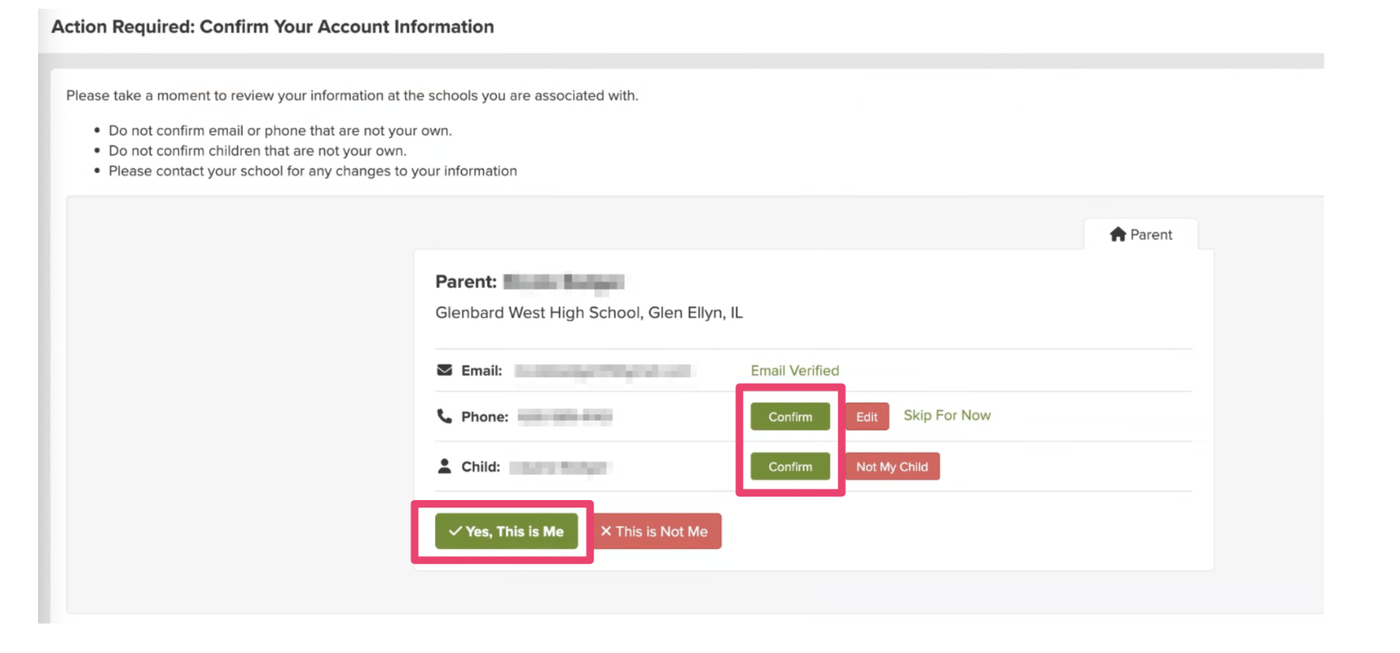
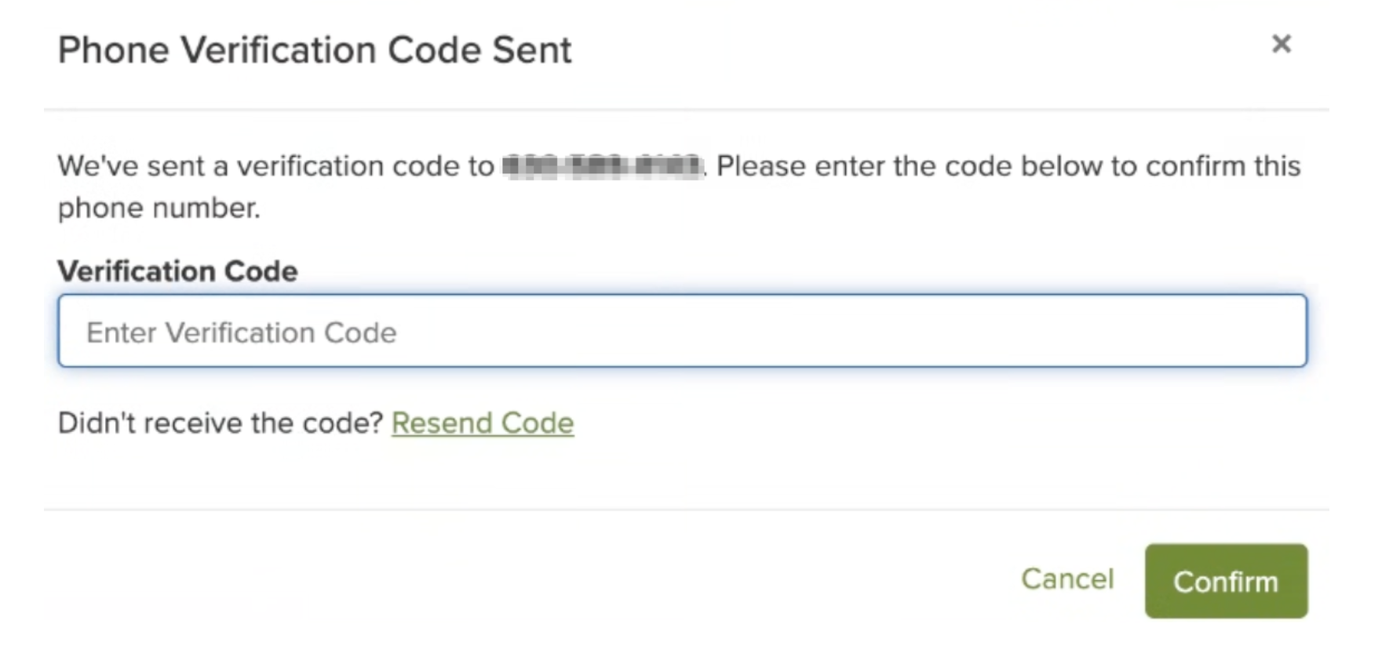
- Your account registration is complete and the ParentSquare landing page will open. Staff and Students will login to ParentSquare using Google Single Sign-On to access ParentSquare once their account is created. Parents/guardians will use their email address or phone number and password to access ParentSquare.
- For easy access, download the ParentSquare app onto your cell phone.
PARENTSquare Apple Store Google Play Store 

- Students can download the StudentSquare all to their cell phone– it is already installed on their iPad.
STUDENTSquare Apple Store StudentSQUARE Google Play Store 

Customizing Your Account
Navigate & Customize Your Account
- Navigate: Parent Dashboard online or on the phone app
- Customize your account settings:
- Manage Your Account Settings – contact information, language, notification preferences
- How to Combine/Merge Accounts (If you have parent accounts at different schools and districts.)
How do I change my phone number in ParentSquare?
- If there is a phone number listed as “Mobile” in PowerSchool for a “lives with” contact it will automatically be the preferred phone number in ParentSquare for that user.
- If there is not a phone number listed as Mobile in PowerSchool, then the first phone listed for a “lives with” contact will be the preferred phone number in ParentSquare.
- Parents/guardians can update their phone numbers in PowerSchool and this will update ParentSquare the next day.
Note: You must be signed into your ParentSquare account to access these linked resources.